Table of Contents
Configuring operating hours in Chattrik ensures that your chat widget reflects your team’s availability accurately. You can set account-wide schedules or customize availability by department. Options include defining daily or weekend hours, displaying schedules on offline and pre-chat forms, and resetting to defaults when needed. This feature helps businesses maintain professionalism, manage customer expectations, and provide reliable support. With quick tips available, setting up operating hours is simple and effective.
Step 1: Log in to Your Dashboard
- Log in to your Chattrik dashboard.
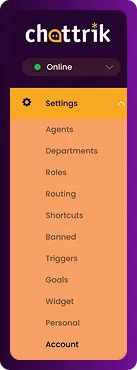
- Navigate to Settings and select Account from the menu.
Step 2: Open Operating Hours Tab
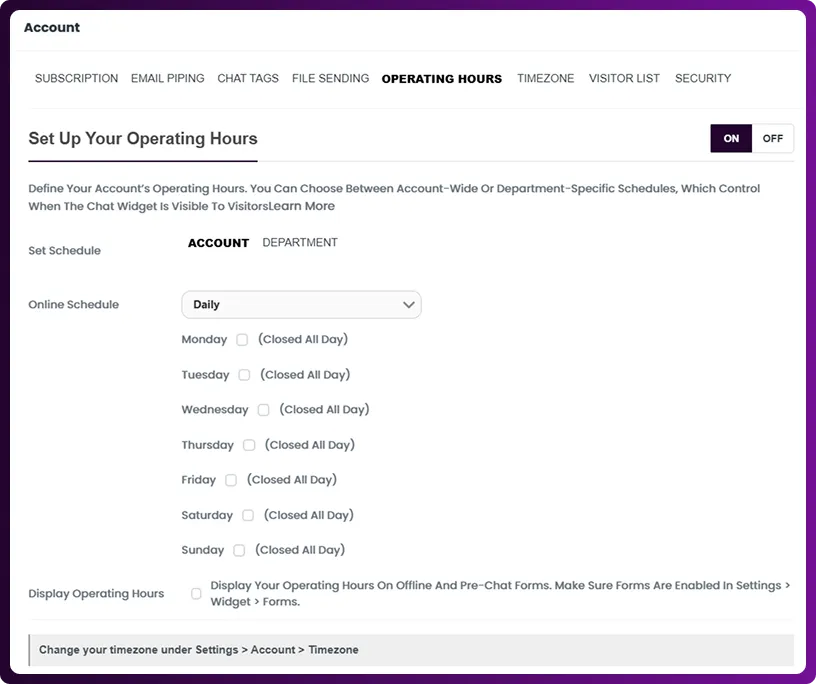
- Go to Account → Operating Hours.
- This tab helps configure availability for your account and departments.
Step 3: Configure Account Operating Hours
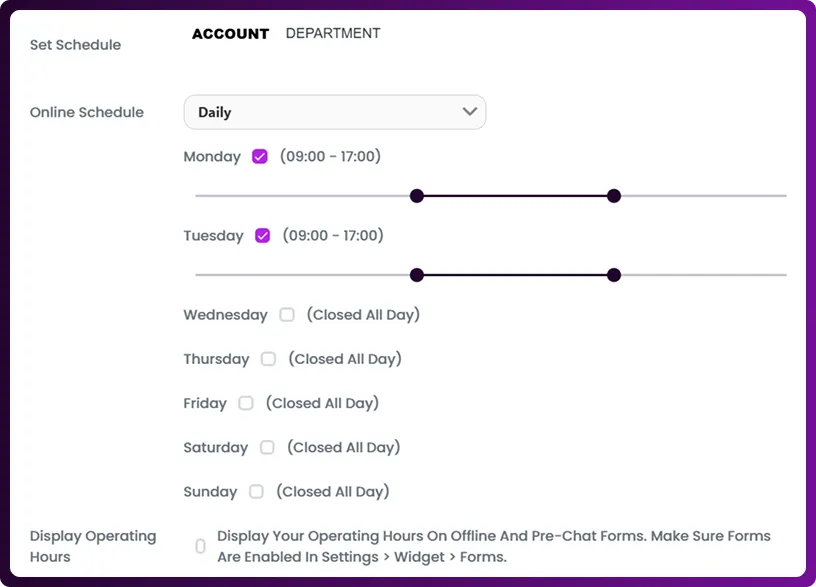
- In the Account section, use the dropdown to choose Daily or Weekend schedules.
- Select specific days and set online hours according to your preferences.
- Toggle the option to display operating hours on offline and pre-chat forms.
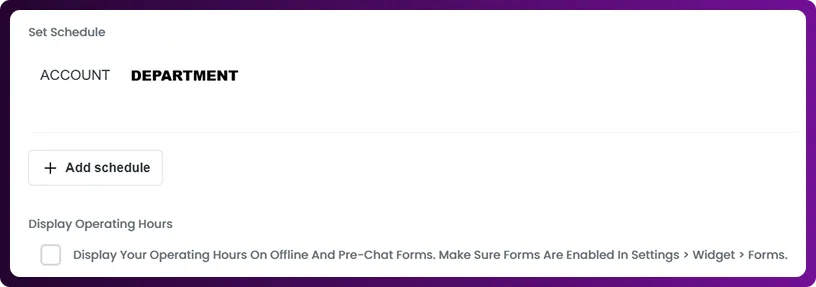
Step 4: Configure Department Operating Hours
- In the Department section, add customized schedules for individual departments.
- You can also choose whether to display operating hours on offline and pre-chat forms.
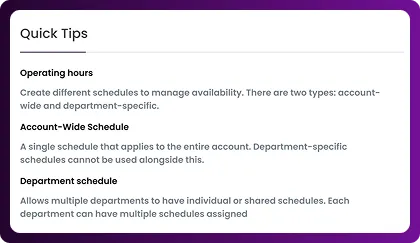
Step 5: Use Quick Tips for Guidance
- On the right side of the screen, you’ll find Quick Tips.
- These tips explain how to set account-wide schedules or department-specific schedules for more flexibility.
Step 6: Save or Reset
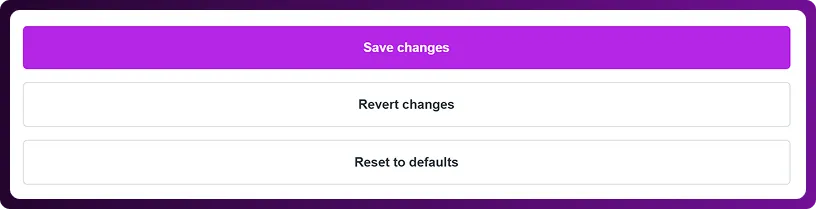
- Click Save Changes to apply your settings.
- If needed, click Reset Defaults to restore the original configuration.