Table of Contents
The Allowed Domains setting in Chattrik lets you specify the websites where your widget should be active. This prevents unauthorized embedding of your widget on other sites, reducing security risks and ensuring chats are initiated only through trusted sources. By restricting widget visibility to approved domains, you maintain tighter control over visitor interactions, protect your brand’s credibility, and enhance overall data security.
Step 1: Log in to Your Dashboard
- Log in to your Chattrik dashboard.
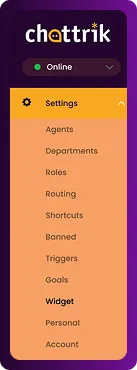
- Navigate to Settings and select Widget from the menu.
Step 2: Open Allowed Domains Section
- Go to Security→ Allowed Domains.
- This is where you can specify approved domains and you can also enable or disable this feature.

Step 3: Add Your Domains
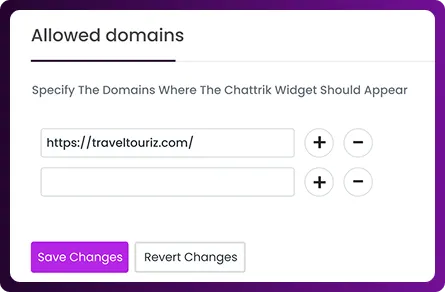
- Enter the URLs of your websites where you want the widget to appear.
- You can add multiple domains as needed.
Step 4: Confirm and Save
- Double-check the domain entries.
- Click Save Changes to apply immediately.

Frequently Asked Questions
Have questions? We’ve got answers. Here are the most common things people ask about Chattrik.
It ensures the widget only loads on websites you specify.
Yes, you can add as many as required.
The widget won’t load on unapproved domains.
Yes, you can add or remove domains anytime.
No, it only controls widget visibility, not your website’s SEO or speed.