Table of Contents
Chattrik makes managing your subscription simple with the option to cancel or reactivate your package whenever needed. If you choose to cancel, your plan remains active until the end of your billing cycle, with timely reminders before final cancellation. At any point, you can reactivate directly from your dashboard or through confirmation emails by making a quick payment. This flexible process ensures you stay in control of your subscription at all times.
Step 1: Access Account Information
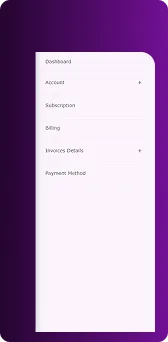
- Log in to your Chattrik dashboard.
- Navigate to Subscription under your account settings.
Step 2: Cancel Subscription
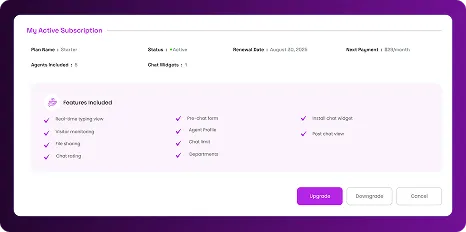
- Click the Cancel Subscription button to begin the cancellation process
Step 3: Confirmation Pop-Up
- A confirmation pop-up will appear asking if you want to cancel or downgrade. Click Cancel to proceed with cancellation.
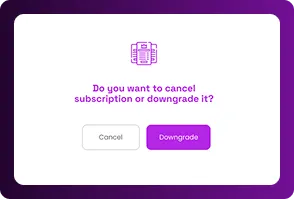
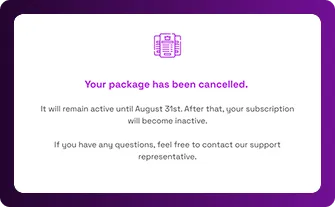
Step 4: Package Cancelled
- A pop-up will confirm that your package has been cancelled. Your subscription will remain active until the end of your billing month.
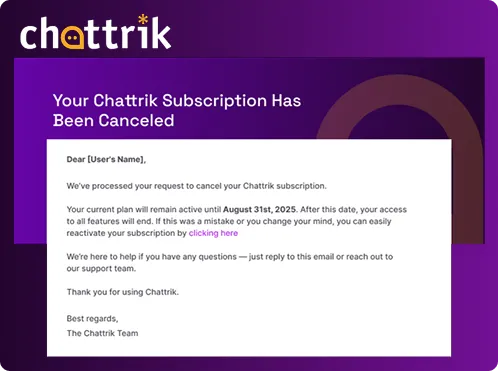
Step 5: Email Notification
- You will receive an email confirming that your subscription has been cancelled. Your subscription will remain active until the end of your billing month.
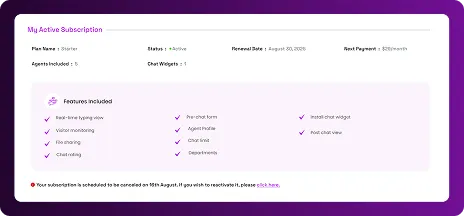
Step 6: Subscription Status
- In the My Subscription section, you will see a note showing your package is scheduled to be cancelled on your billing end date.
- If you wish to reactivate, a Click Here to Reactivate link will be available.
Step 7: Reactivation Confirmation
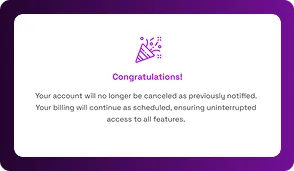
- When you click to reactivate, a Congratulations pop-up will appear confirming that your subscription will no longer be cancelled.
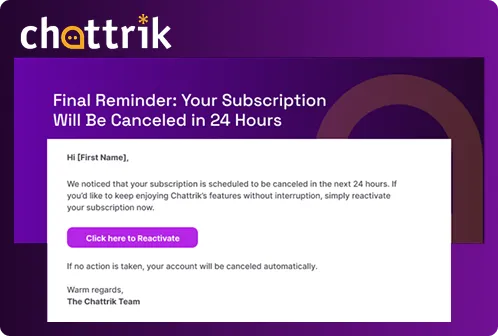
Step 8: Final Reminder Email
- If you do not reactivate, you will receive a final reminder email 24 hours before your subscription is scheduled to be cancelled.
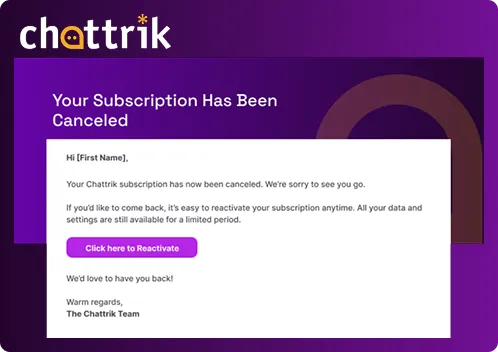
Step 9: Subscription Cancelled
- Once the cancellation date passes, you will receive an email confirming that your subscription has ended.
- This email will also include a Reactivate button if you wish to restart your package.
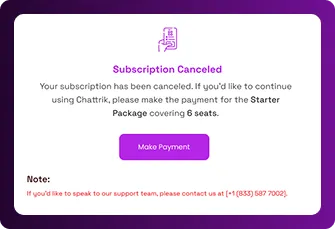
Step 10: Reactivation Instructions
- Clicking Reactivate will open a pop-up showing your subscription is cancelled. To continue using Chattrik, you must complete payment for the selected package.
- For any query, there is a support phone number to speak to our support team
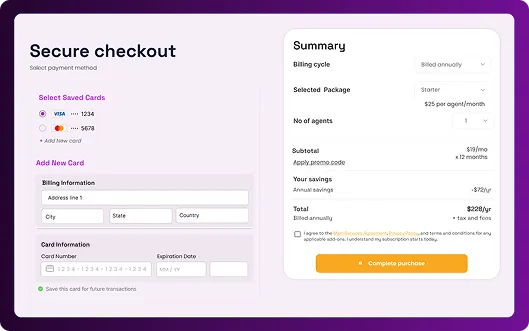
Step 11: Payment Method
- Enter your payment details to reactivate your subscription.
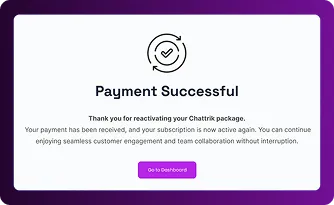
Step 12: Payment Successful
- A pop-up will confirm your payment was successful. Click Go to Dashboard to resume using Chattrik.
Step 13: Email Confirmation
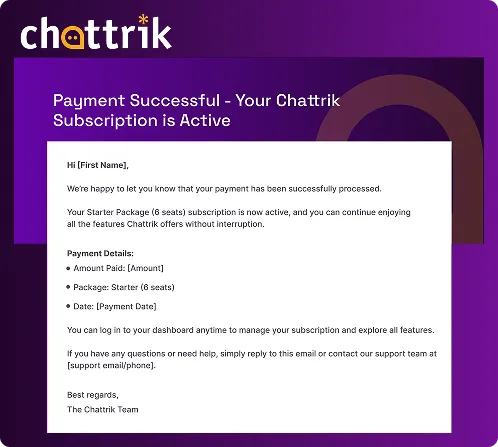
- You will receive an email confirming successful payment, along with details of your reactivated package.