Table of Contents
Upgrading your package to a higher plan on Chattrik gives you access to advanced features, more seats, and greater flexibility for your growing team. The process is simple and secure, guiding you through selecting the desired package, confirming your upgrade, and completing the payment. With instant confirmation and email notifications, you can smoothly transition to a higher plan and continue working without interruptions while enjoying enhanced capabilities.
Step 1: Access Account Information
- Log in to your Chattrik dashboard.
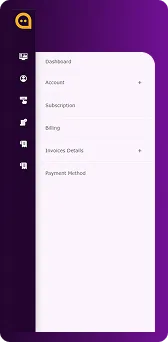
- Navigate to Subscription under your account settings.
Step 2: Select Upgrade
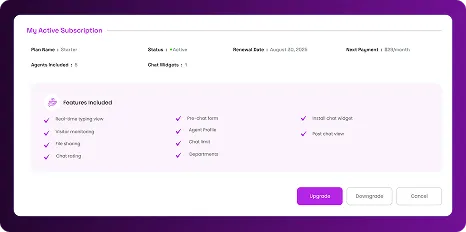
- Click the Upgrade button to begin the upgrade process.
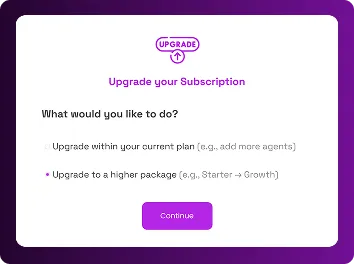
Step 3: Choose Upgrade to Higher Package
- A pop-up will appear with two options. Select Upgrade to a Higher Package and click Continue.
Step 4: Select Your New Package
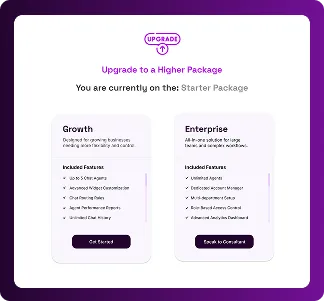
- A confirmation pop-up will display the available upgrade plans. Select the package you want to move to.
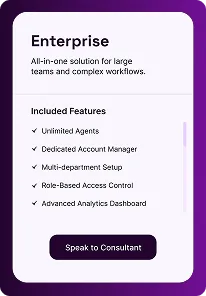
Step 5: Enterprise Package Option
- If you want to upgrade to the Enterprise Package, click the Speak to Consultant button. This will connect you with a consultant for personalized assistance.
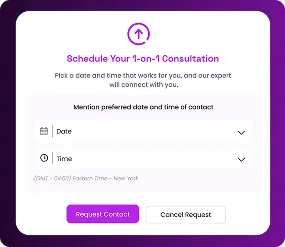
Step 6: Schedule a Consultation
- A scheduling pop-up will appear, allowing you to choose a convenient time for your 1-on-1 consultation with the Chattrik consultant. After selecting a time, click Request Contact.
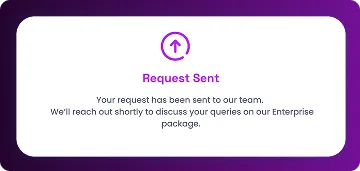
Step 7: Confirmation for Enterprise Request
- A confirmation pop-up will appear, and you’ll receive an email confirming that your consultation request has been sent successfully.
Step 8: Growth Package Option
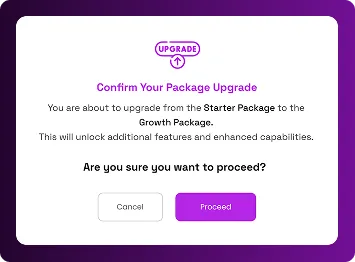
- If you choose the Growth Package, a system confirmation pop-up will appear. Click Proceed to continue.
Step 9: Complete Payment
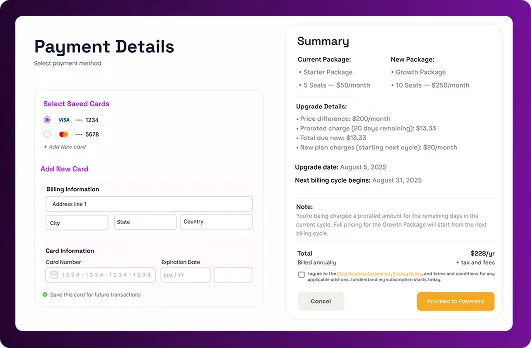
- Enter your payment details and complete the transaction.
Step 10: Payment Confirmation
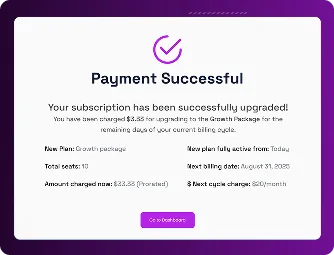
- Once payment is successful, a pop-up will confirm your upgrade, showing the updated plan details.
Step 11: Email Notification
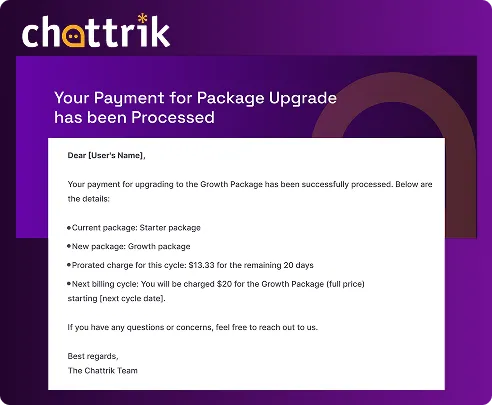
- Finally, check your email for a notification confirming the successful payment and upgrade details.