Table of Contents
Purchasing a package at Chattrik is a simple and secure process designed to give you quick access to premium features. Whether you choose a monthly or yearly plan, this step-by-step guide will walk you through selecting the right package, entering your details, completing payment, and receiving confirmation. Follow the instructions below to make your purchase hassle-free and start enjoying the full benefits of Chattrik.
Step 1: Visit the Chattrik Website
- Open chattrik.com.
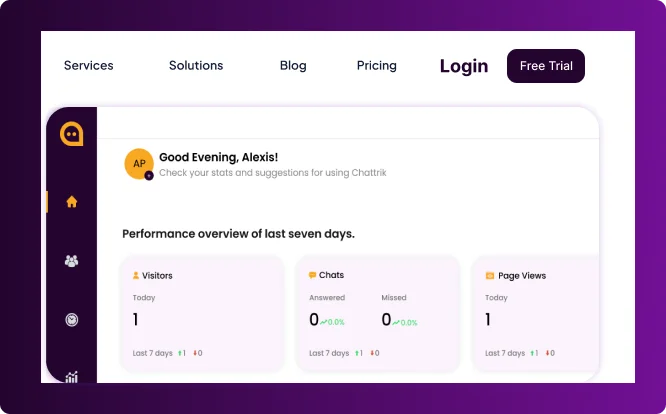
- On the homepage, click the “Pricing” button to view available packages.
Step 2: Select Your Package
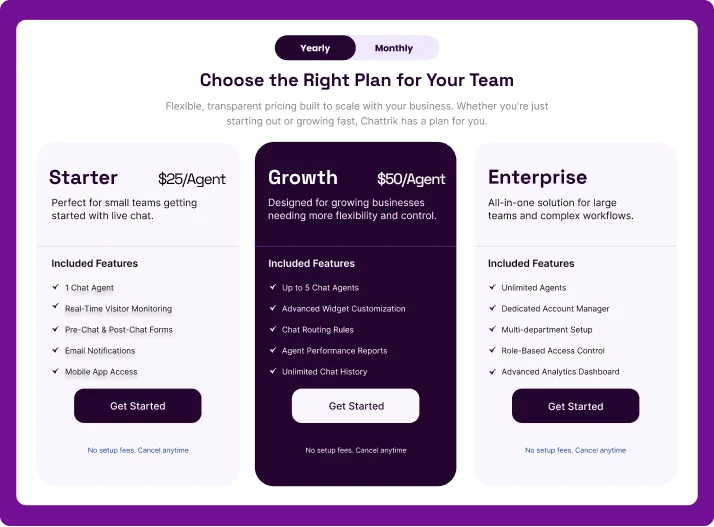
- On the pricing page, you’ll find our three packages: Starter, Growth, and Enterprise. Each package offers a unique set of features, thoughtfully designed to meet the varying needs of different businesses. Take your time to review the packages and choose the one that best fits your organization's requirements. You can also toggle between yearly and monthly billing to compare pricing options.
- Once you've made your decision, click the “Get Started” button under your selected package.
Step 3: Enter Your Details
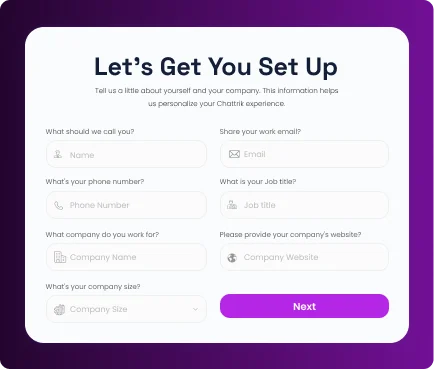
- Fill in your information, including:
- Full Name
- Phone Number
- Company Name
- Job Title
- Company Size
- Click Next to proceed.
Step 4: Select Billing Cycle, No of Agents and Move to Payment.
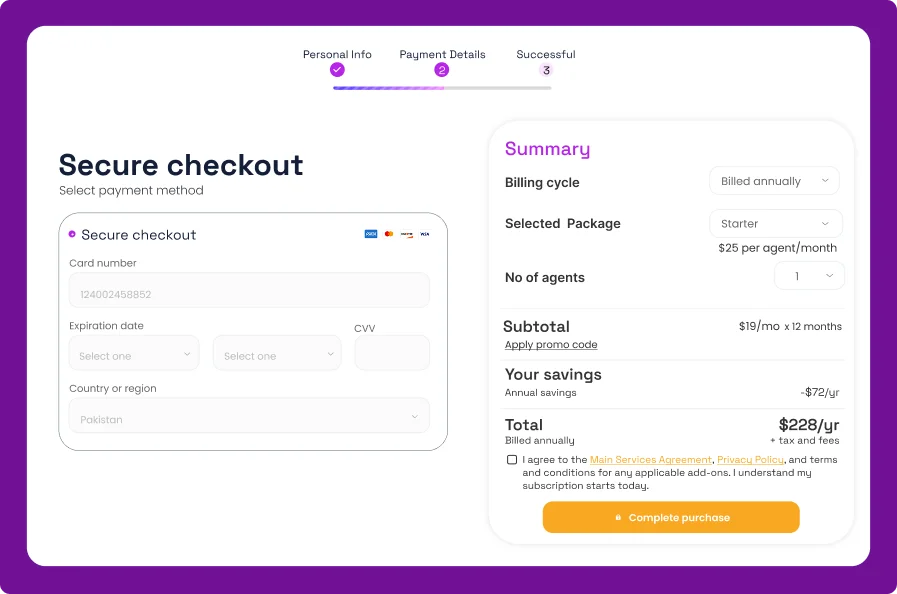
- On the right side, select your billing cycle, choose your package, and specify the number of agents. Once you’ve completed these steps, enter your card details on the left-hand side and proceed with the payment.
Step 5: Complete the Payment
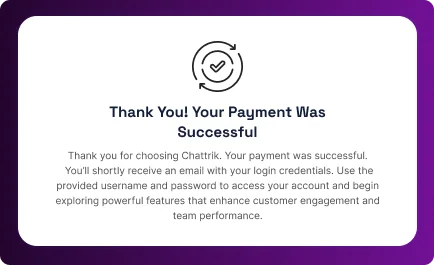
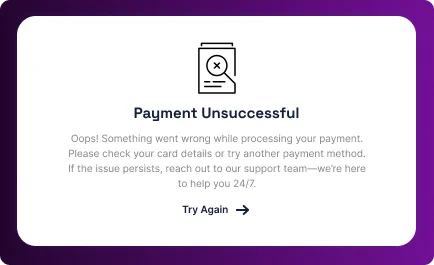
- After submitting, you will see one of two screens:
- Thank You Screen → Payment successful.
- Unsuccessful Payment Screen → Retry option available if there’s an issue.