Table of Contant
Downgrading your package to a lower plan on Chattrik is simple and helps you adjust your subscription to better fit your current needs. Whether your team is scaling down or you need fewer advanced features, the process ensures you can switch plans smoothly. With clear steps, instant confirmation, and updated payment details, Chattrik makes it easy to manage costs while continuing to access essential tools for your business.
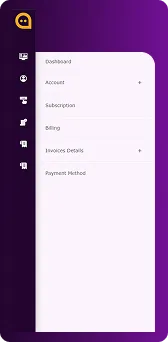
Step 1: Access Account Information
- Log in to your Chattrik dashboard.
- Navigate to Subscription under your account settings.
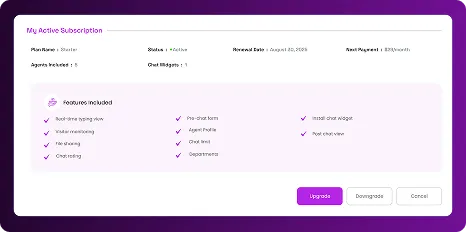
Step 2: Select Downgrade
- Click the Downgrade button to begin the process.
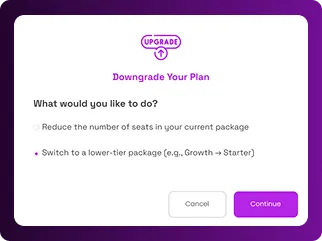
Step 3: Choose Downgrade to Lower Package
- From the options displayed, select Switch to a Lower-Tier Package and click Continue.
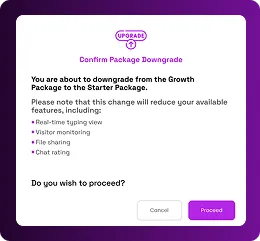
Step 4: Confirm Downgrade
- A confirmation pop-up will appear showing your selected downgrade option. Click Proceed to continue the process.
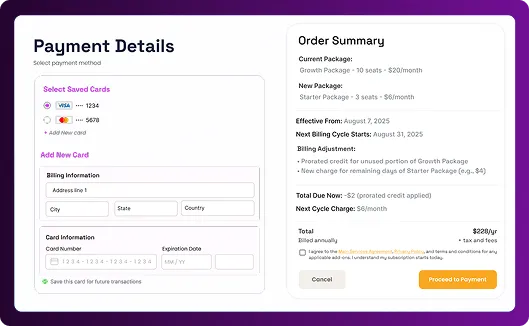
Step 5: Review Payment Details
- Your payment details will be displayed, showing the price of your current package and the new amount you will pay after downgrading. Review the details carefully and confirm.
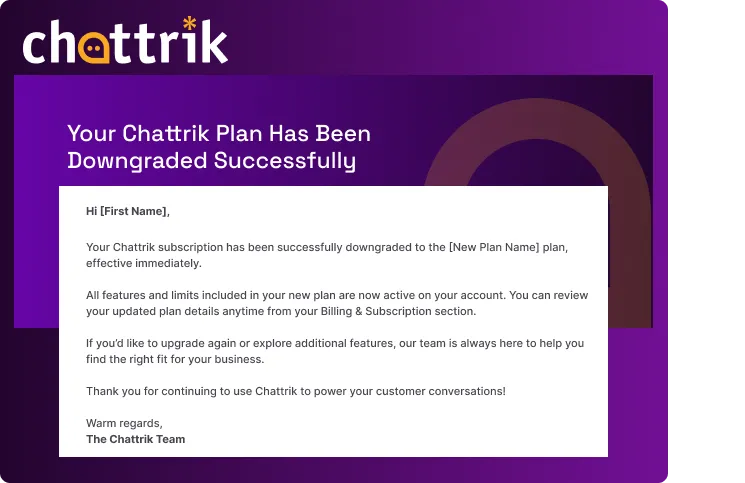
Step 6: Receive Confirmation
- Once confirmed, you’ll receive a confirmation email summarizing your downgrade.
- Your account will automatically reflect the changes in your next billing cycle
Frequently Asked Questions
Have questions? We’ve got answers. Here are the most common things people ask about Chattrik.
Yes, you can downgrade to a lower-tier package anytime directly from your Chattrik dashboard.
Yes, moving to a lower package means you’ll have fewer features compared to higher-tier plans.
No, payment adjustments are reflected in your next billing cycle with updated pricing.
Yes, a confirmation pop-up appears during the downgrade process, and you’ll also receive an email with all details.
Absolutely, you can upgrade to a higher-tier package anytime if your business needs grow again.