How to Start Your Free Trial at Chattrik

Getting started with Chattrik is simple. Just follow these steps to activate your free trial and access your trial account.

Starting your free trial at Chattrik is simple and quick. This guide walks you through every step, from visiting the website and verifying your email to entering your details and setting up a secure password. At the end of the process, you’ll receive your login information directly in your email, giving you immediate access to explore Chattrik’s features before choosing a subscription plan.

Step 1: Visit the Chattrik Website
  • Open chattrik.com.
  • On the login page, click the “Start Free Trial” button to begin the registration process.
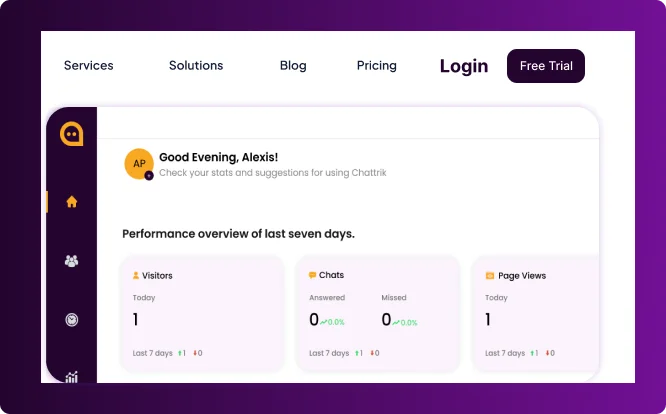
The Chattrik website navigation header showing the main menu options alongside Login and Free Trial buttons.
Step 2: Create Your Account on Chattrik
  • Enter your email address and click Next.
  • A verification code will be sent to your inbox.
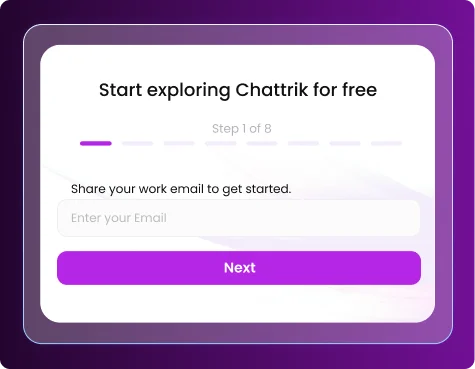
Step 1 of the signup process with an input box to share your work email.
Step 3: Verify OTP
  • Check your email for a 4-digit code.
  • Enter the code into the verification field.
  • If you don’t see it in your inbox, check your Spam/Junk folder.
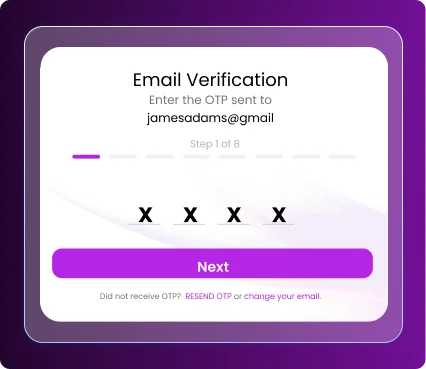
The email verification step showing input boxes to enter the sent OTP code.
Step 4: Enter Your Full Name
  • Provide your full legal name as required for account registration.
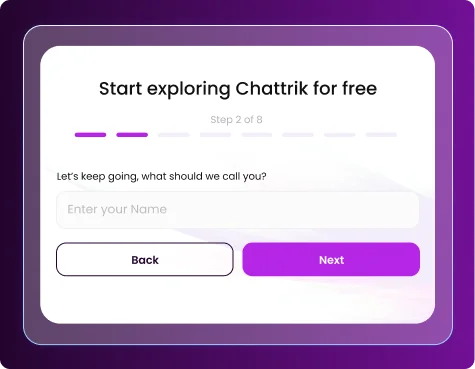
Step 2 of the signup process prompting users to enter their name.
Step 5: Enter Your Phone Number
  • Type in a valid phone number for verification or account recovery.
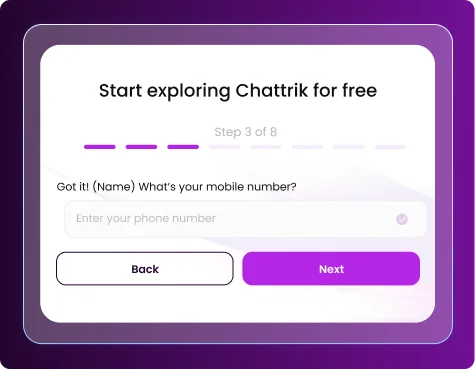
Step 3 of the signup process containing an entry field for a mobile number.
Step 6: Enter Your Company Name
  • Provide the name of your company or organization.
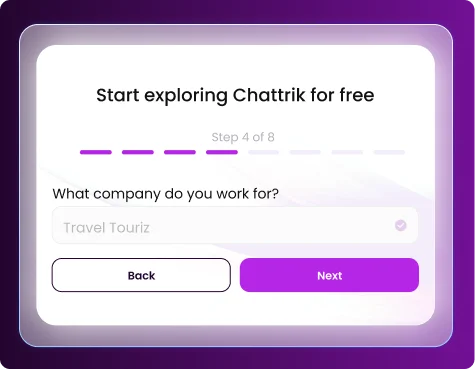
Step 4 of the signup wizard asking for the company name.
Step 7: Enter Your Job Title
  • Add your current role or job title for account records.
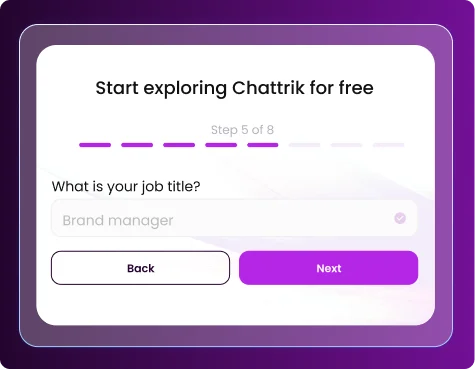
Step 5 of the signup process with a text box requesting the user's job title.
Step 8: Enter Company Size
  • Specify how many employees work at your company (e.g., 1–10, 11–50, 51–200, etc.).
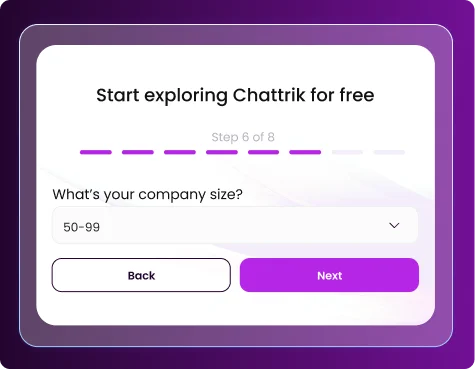
Step 6 of the signup menu featuring a drop-down selector to choose company size.
Step 9: Set Up Domain Name
  • Create and register your Chattrik domain for your account. This domain name is important and needs to be set carefully as once set it cannot be changed.
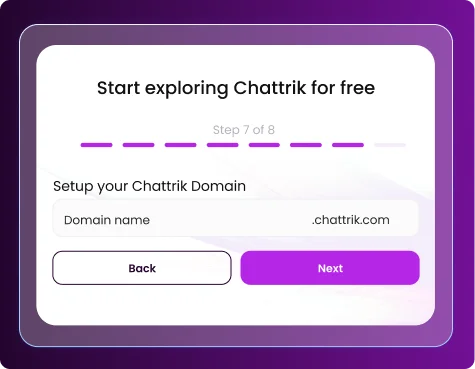
Step 7 of the onboarding setup highlighting the custom Chattrik subdomain selection field.
Step 10: Create Your Password
  • Choose a strong password containing letters, numbers, and symbols for security.
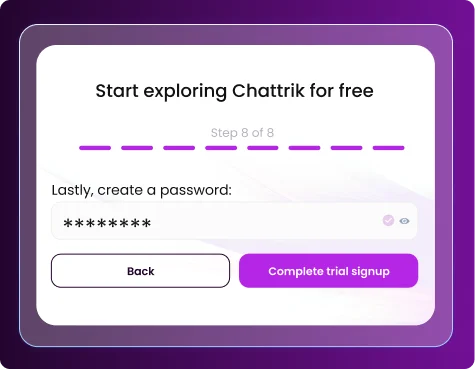
The final registration step with a masked text field to create an account password.
Step 11: Finalize Setup
  • Wait for the setup process to complete.
  • A progress counter may appear—allow it to finish.
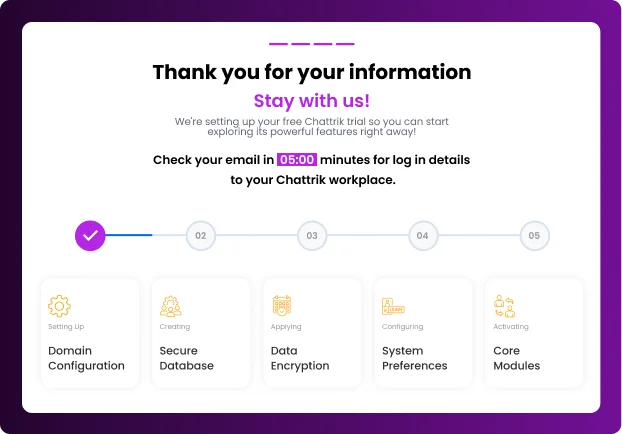
A confirmation page displaying a 5-step processing timeline for setting up a free Chattrik workplace trial.
Step 12: Check Your Email
  • Once the process is complete, you may check your email for your log in credentials.
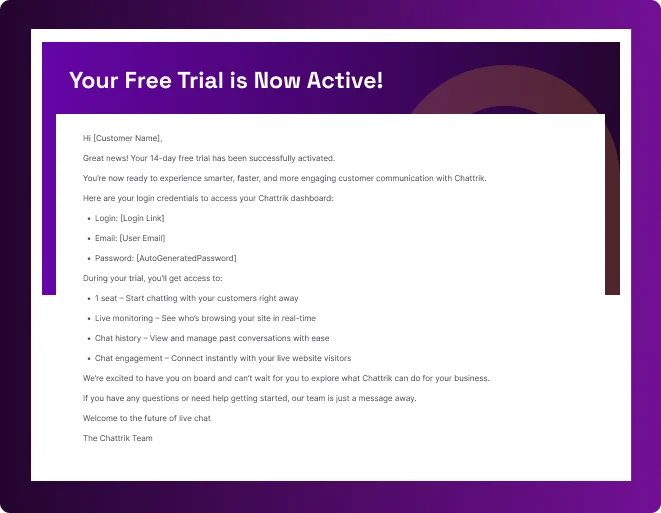
An activation email layout detailing account information, login credentials, and features included during the trial period.
Step 13: Log in to your account
  • In the email, you’ll find your login ID and password for your trial account.
  • Use these details to sign in and start using Chattrik.
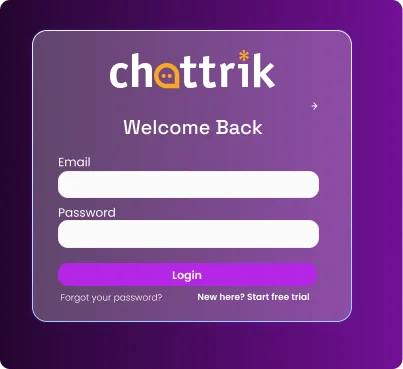
The Chattrik account login interface featuring input boxes for Email and Password alongside a Login button.
Frequently Asked Questions

Have questions? We’ve got answers. Here are the most common things people ask about Chattrik.

No, you don’t need a credit card to begin. You can simply register with your email and complete the setup steps.

Check your Spam/Junk folder. If it’s still missing, request a new code by clicking the resend option on the verification page.

Yes, you can use either a personal or business email. However, using a business email is recommended for smoother setup of your Chattrik domain.

The trial period is limited (exact duration is shared in your welcome email). During this time, you can test all the core features before deciding on a package.

Yes, once you complete the setup, Chattrik will send you your login ID and password via email. You can use them right away to access your trial account.
WhatsApp Chat