Table of Contents
Chattrik Omni channel allows you to manage Facebook Messenger and Instagram conversations from a single inbox. Once connected, your team can respond to customer messages, track conversations, and manage all social interactions without switching between platforms. This guide will show you how to connect your accounts and access your Meta visitors.
Step 1: Open the Omni channel Settings
Log in to your Chattrik dashboard.
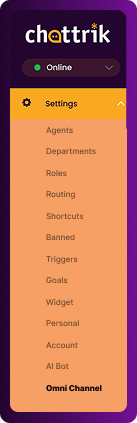
From the left-hand navigation menu, click Settings, then select AI Bot. This will open the AI Bot configuration page where you can manage all AI-related settings.
Step 2: Connect Your Facebook Page
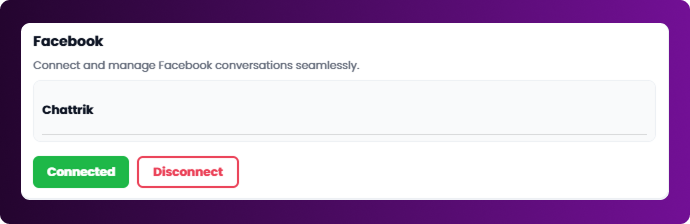
In the Facebook section, connect your Facebook Page by following the authorization process.
Once connected, all customer messages from your Facebook Page will automatically appear in your Chattrik inbox, allowing your team to manage conversations from one place.
The Exit Intent feature allows you to display a final message when a visitor is about to close the chat window. This provides one last opportunity to engage visitors before they leave.
Step 3: Connect Your Instagram Account
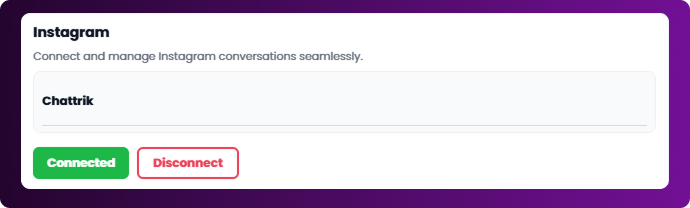
In the Instagram section, connect your Instagram Business account.
After successful connection, Instagram messages will be synchronized with Chattrik, enabling your team to reply directly from the Chattrik dashboard.
Step 4: Open the Meta Visitors Section
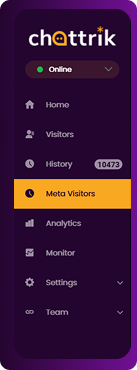
After connecting your Facebook and Instagram accounts, click Meta Visitors from the left-hand navigation menu.
This section displays all visitors who have contacted you through your connected Meta channels.
Step 5: Manage Your Meta Visitors
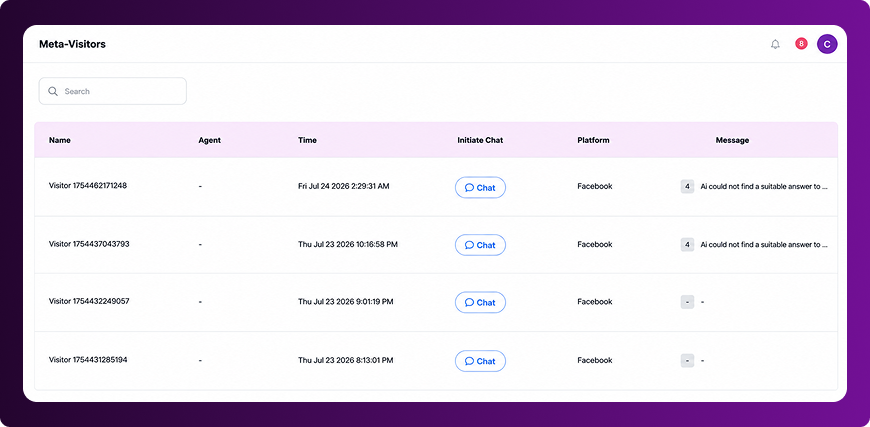
The Meta Visitors screen gives you a complete overview of customer conversations from Facebook and Instagram.
Here you can view:
- Visitor name.
- Assigned support agent.
- Date and time of the conversation.
- Platform (Facebook or Instagram).
- Last message exchanged.
- Reopen and continue previous conversations with any visitor.
This centralized view helps your team manage customer interactions more efficiently without switching between platforms.
You're All Set!
Your Facebook and Instagram accounts are now connected to Chattrik Omni channel. You can manage all customer conversations from one unified workspace, improve response times, and deliver a seamless support experience across both platforms.