Table of Contents
Chattrik's AI Chatbot helps you provide instant, intelligent responses to your website visitors, even when your support team is unavailable. Once enabled, you can train the AI with your business knowledge, review unanswered questions, analyze customer interactions, and configure when the AI should take over conversations. This guide walks you through each AI Chatbot setting available in your Chattrik dashboard.
Step 1: Open the AI Bot Settings
Log in to your Chattrik dashboard.
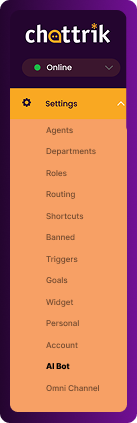
From the left-hand navigation menu, click Settings, then select AI Bot. This will open the AI Bot configuration page where you can manage all AI-related settings.
Step 2: Configure Your AI Bot
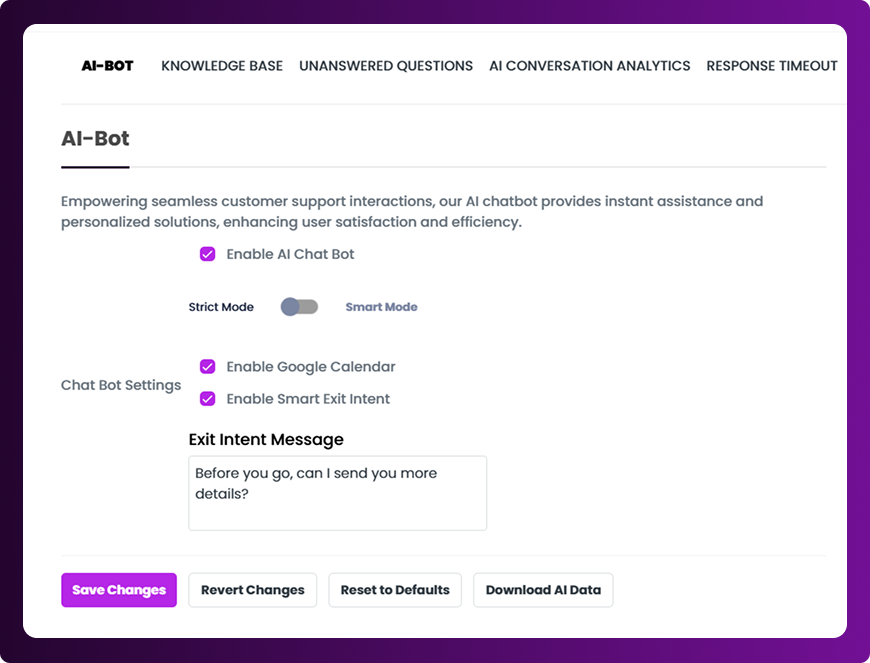
The first tab is AI Bot, where you can enable and configure your chatbot.
Within this tab, you can:
- Enable or disable the AI Bot.
- Choose between Strict Mode and Smart Mode.
- Enable Google Calendar integration.
- Enable the Exit Intent message.
Understanding AI Modes
Strict Mode
In Strict Mode, the AI responds using the exact information available in your uploaded knowledge base. Responses remain consistent with your provided content without changing the wording.
Smart Mode
In Smart Mode, the AI can generate responses based on your knowledge base while also using its own language processing capabilities. This allows for more natural and varied responses, but may not always match your exact content.
Google Calendar Integration
Enable Google Calendar if you want your AI Bot to access your connected calendar for scheduling-related interactions.
Exit Intent Message
The Exit Intent feature allows you to display a final message when a visitor is about to close the chat window. This provides one last opportunity to engage visitors before they leave.
Step 3: Train Your AI with the Knowledge Base
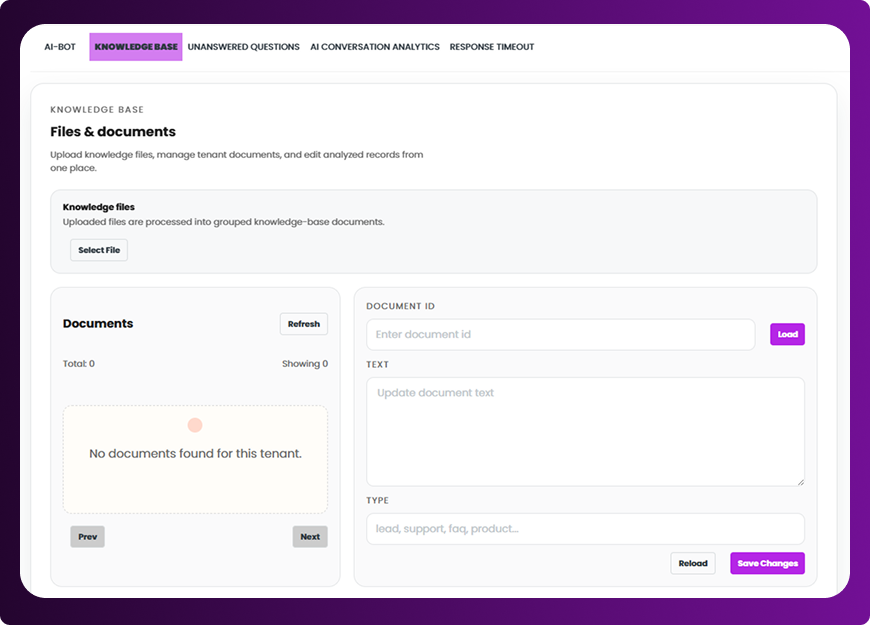
Open the Knowledge Base tab.
This section allows you to train your AI by uploading your business FAQs and knowledge documents.
Here you can:
- Upload your FAQ document.
- Add new business information.
- Edit existing FAQs whenever your business information changes.
Keeping your knowledge base updated helps your AI provide more accurate and relevant responses to customer questions.
Step 4: Review Unanswered Questions
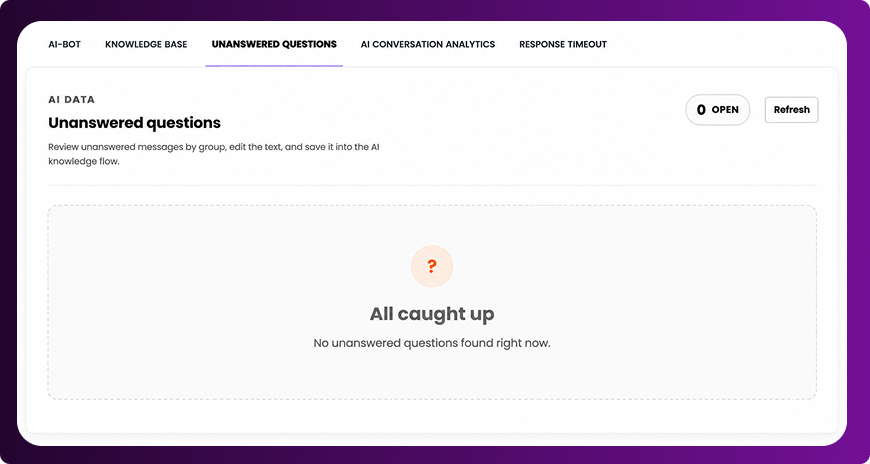
Open the Unanswered Questions tab.
Whenever the AI receives a question that is not available in your knowledge base, it will appear here.
You can:
- Review unanswered customer questions.
- Add appropriate answers.
- Click Save to store the responses.
Once saved, these answers are automatically added to your Knowledge Base, allowing your AI to answer similar questions in future conversations.
Step 5: View AI Conversation Analytics
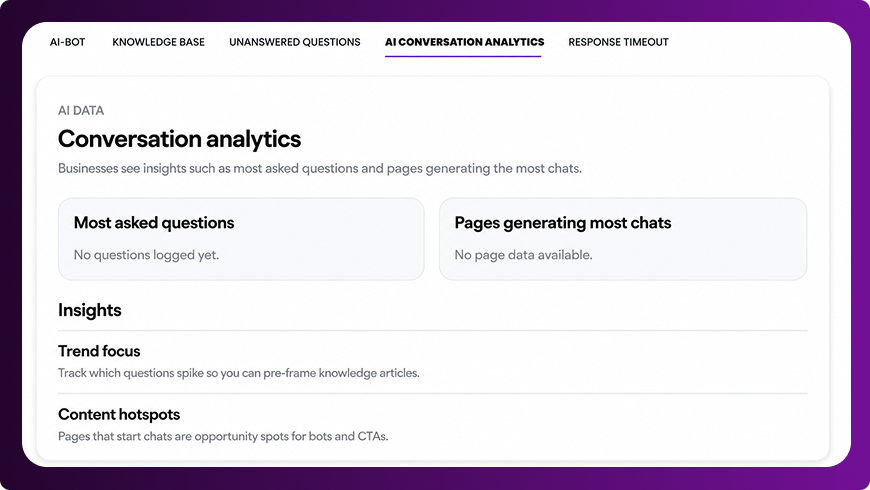
Navigate to the AI Conversation Analytics tab.
This section provides insights into how visitors interact with your AI chatbot.
You can view:
- Frequently asked questions.
- How many times each question has been asked.
- Customer interaction trends.
These insights help you identify common customer concerns and improve both your support process and business operations.
Step 6: Configure AI Response Timeout
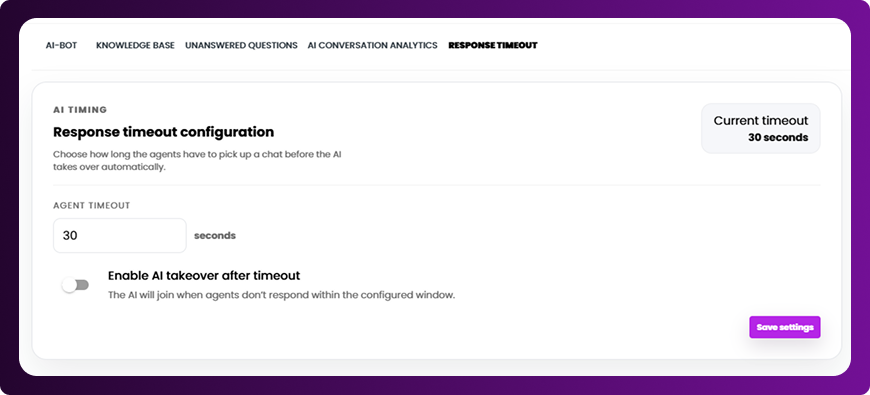
Open the Response Timeout tab.
This setting determines how long Chattrik waits before the AI Bot takes over a conversation when no support agent is available.
Simply choose the preferred response timeout that best matches your support workflow.
A properly configured timeout ensures visitors receive timely assistance while still giving your support team enough time to respond whenever agents are available.
You're All Set!
Your AI Chatbot is now configured and ready to assist your visitors.
To achieve the best results, keep your Knowledge Base updated, regularly review unanswered questions, and monitor conversation analytics to continuously improve your AI's performance and customer experience.